
Zoho One Implementation Guide: Sequencing, Data and Integration
By Vikas Saroj, ERP, Digital Transformation & Growth Consultant
Key takeaways
- A Zoho One implementation works best when treated as one business system, starting with identity, domain verification, Zoho Directory and single sign-on before any app goes live.
- Assign one system of record for each data type, such as Zoho CRM for customers, Zoho Books for invoices and Zoho People for employees, and store cross-app record IDs.
- Roll out Zoho One apps in sequence, typically foundation, CRM, finance, delivery or service, people, then analytics and Creator, letting each phase settle before the next.
- Connect Zoho apps with native integrations first, then Zoho Flow, then Deluge functions and APIs, and use Zoho Creator only when a whole application is missing.
- Migrate data into the system of record first and let integrations create matching records elsewhere, and avoid syncing every CRM prospect into Zoho Books.
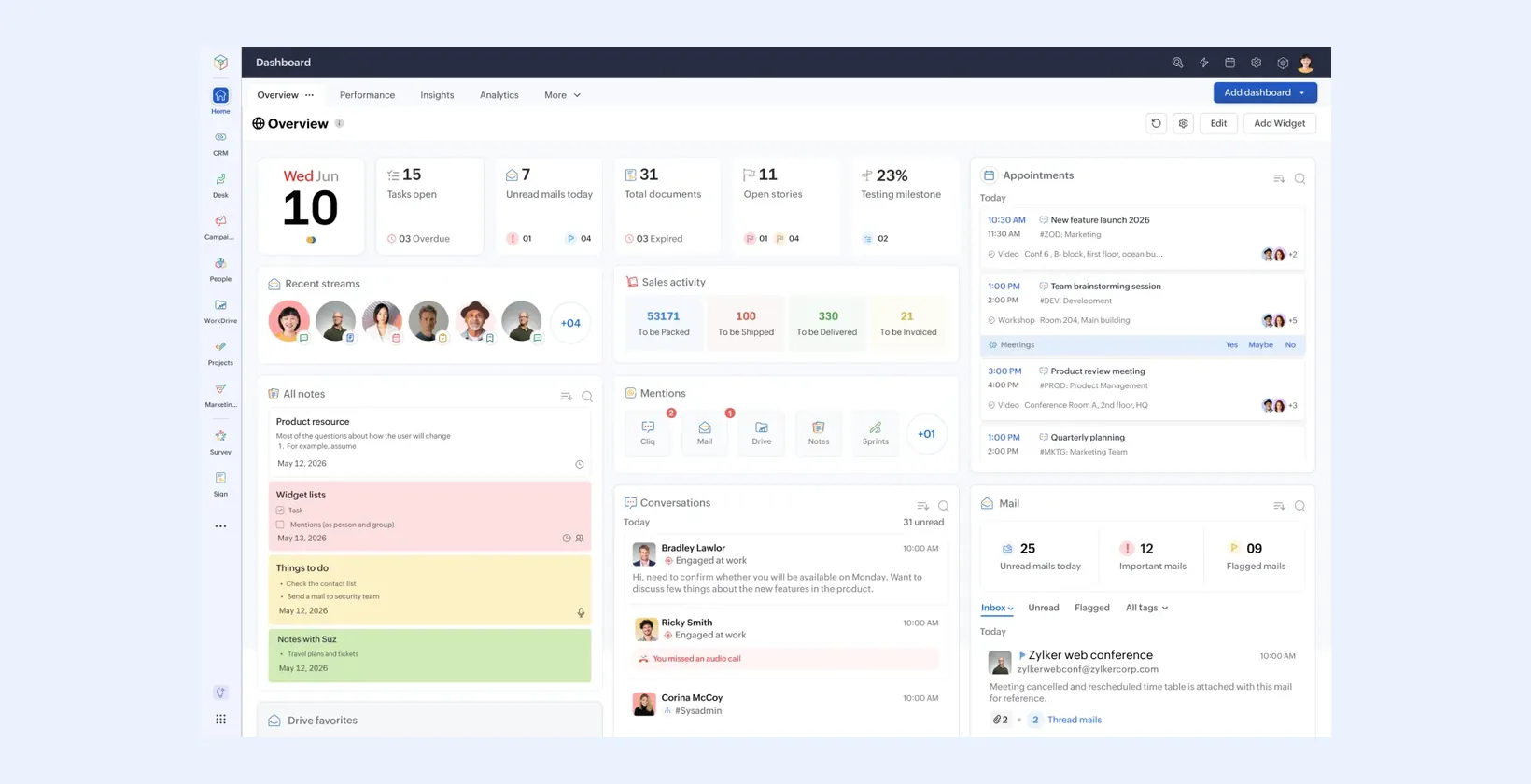
A Zoho One implementation works when you treat it as one business system rather than dozens of separate apps. Set up identity and users first, decide which app owns each type of data, roll out apps in a deliberate sequence that follows how money and customers flow through the business, and connect the apps with native integrations before you reach for Zoho Flow or custom code. This guide sets out that sequence and the design decisions behind it.
The most common Zoho One problem I see is not a missing feature. It is a business that switched on many apps at once, with each department configuring its own corner, and now has three versions of the customer list and no one who trusts the reports.
Start with the business, not the app list
Zoho One gives you access to a very wide range of applications. That is its strength and its risk. Before deploying anything, answer three questions:
- Which processes are we fixing first? For example lead-to-cash, procure-to-pay, ticket-to-resolution, or hire-to-retire.
- Which apps support those processes? Usually a small core: CRM, Books, Desk, Projects, People, Analytics.
- What do we leave alone for now? Tools that work well today, such as an existing email platform, may not need replacing in phase one.
I map the end-to-end processes first, then assign each step to an app. Anything without a clear home is a candidate for Zoho Creator or for a later phase. My approach to business process consulting explains how I run that mapping.
Step 1: Identity, users and administration
Everything in Zoho One hangs off the organization's user directory, so get this right before any app goes live.
- Domain verification: verify your company domain so users are created under your organization and cannot sign up as separate personal accounts.
- Zoho Directory: manage users, groups and departments centrally. Configure security policies such as multi-factor authentication and password rules here.
- Single sign-on: if you already use an identity provider, set up SAML-based SSO so staff sign in with their existing credentials.
- Departments and app assignment: group users into departments and assign apps by department, so new hires get the right tools automatically.
- Admin roles: separate Zoho One organization administrators from app-level administrators. Not every CRM admin needs control over the whole organization.
Also agree on an offboarding procedure. Deactivating a user in Zoho One should be part of the leaver process, and record ownership in each app should be reassigned before the account is closed.
Step 2: Design the data model across apps
This is the step that makes or breaks a Zoho One implementation. Several apps hold overlapping data: customers live in CRM, Books, Desk, Projects and Campaigns. You need one owner for each type of data and clear sync rules.
| Data | Typical system of record | Consumed by | Key decision |
|---|---|---|---|
| Customers and contacts | Zoho CRM | Books, Desk, Projects, Campaigns | Which CRM records sync to Books, and when (for example only on deal won) |
| Products and services | Zoho Books or Inventory | CRM quotes, Commerce | Where pricing, tax codes and SKUs are maintained |
| Quotes, orders and invoices | Zoho Books | CRM (visibility for sales) | Whether quotes originate in CRM or Books |
| Employees | Zoho People | Directory, Projects, Expense | How joiners and leavers flow to other apps |
| Projects and time | Zoho Projects | Books (billing), CRM (account view) | How a won deal becomes a project and how time becomes an invoice |
| Support tickets | Zoho Desk | CRM (account health) | How Desk contacts map to CRM contacts and accounts |
Write down unique identifiers too. If a customer has a CRM record ID, a Books contact ID and a Desk account ID, store the cross-references so integrations and reports can join them reliably.
Step 3: Sequence the rollout
Rolling out everything at once overloads users and hides problems. A typical sequence I use:
- Foundation: Zoho Directory, domain, SSO, departments, mail if moving to Zoho Mail.
- Customer-facing core: Zoho CRM with clean data and the agreed sales process. See my Zoho CRM implementation guide for this phase.
- Finance: Zoho Books (and Inventory if you hold stock), integrated with CRM, with opening balances and tax configured.
- Delivery and service: Zoho Projects or Desk depending on whether you deliver projects or support customers.
- People: Zoho People for HR records, leave and attendance, feeding user lifecycle.
- Insight and extensions: Zoho Analytics for cross-app reporting, Zoho Creator for processes the standard apps cannot handle.
Each phase should go live and settle before the next one starts. The order changes with the business: a support-heavy company may bring Desk forward; a trading business may start with Books and Inventory.
Step 4: Connect the apps
Use integration options in this order of preference:
- Native integrations between Zoho apps, such as CRM with Books, CRM with Desk, or Projects with Books. They are supported by Zoho and need no code.
- Zoho Flow for workflows across Zoho and third-party apps: triggers, conditions and actions built visually, with Deluge available for custom logic. It is good for event-driven steps such as creating a project when a deal is won, or alerting a channel when a high-value ticket is raised.
- Deluge functions and APIs for logic that needs more control, such as complex transformations, batching, or error handling.
- Zoho Creator when the requirement is really a missing application rather than a missing connection.
Every integration should have an owner, a written description, and a way to see failures. Zoho Flow keeps execution history; check it regularly, especially in the early weeks. For integrations with systems outside Zoho, see my system integration service.
Step 5: Reporting across the suite
Each Zoho app has its own reports, but questions that span departments, such as revenue by customer against support load, or project margin by account, belong in Zoho Analytics. Its connectors pull data from Zoho apps into one place, where you can model relationships and build shared dashboards. Plan the key metrics early, because they often reveal fields and identifiers you need to capture from day one.
Step 6: Data migration and training
Migrate data app by app, in the same sequence as the rollout, and always load the system of record first. If CRM owns customers, load and clean CRM, then let the integration create matching records in Books rather than importing customers into both apps separately. That way the cross-references are correct from the start.
Training should follow processes, not apps. A salesperson needs to see how a lead becomes a deal, a quote and an invoice across CRM and Books; a project manager needs to see how a won deal becomes a project and how logged time becomes billing. When people understand the whole flow, they stop creating workarounds that break the data model.
Step 7: Governance after go-live
- Name an owner for each app and one overall Zoho One administrator.
- Keep a change log for fields, automations and integrations.
- Review new app requests against the data model before switching anything on.
- Run a quarterly review of user licenses, inactive accounts and failed integrations.
Common pitfalls
- Letting each department pick and configure apps on its own.
- Syncing every CRM record to Books, cluttering finance with prospects.
- Building Zoho Flow automations without error alerts.
- Skipping SSO and domain verification, then cleaning up stray accounts later.
- Trying to replace every existing tool in the first phase.
Next steps
If you are planning a Zoho One rollout, or untangling one that grew without a plan, I can help design the data model, sequence the apps and build the integrations. Learn more about my Zoho consulting services or book a consultation.
Frequently Asked Questions
Which Zoho One apps should we implement first?
Start with identity and administration, then the app at the center of your main process, which is usually Zoho CRM or Zoho Books. Add delivery, support, HR and analytics in later phases once the core is stable.
What is Zoho Flow used for in Zoho One?
Zoho Flow automates workflows between Zoho apps and third-party services using triggers, conditions and actions, with Deluge for custom logic. Use it where native integrations between apps do not cover the requirement.
How do we avoid duplicate customers across Zoho apps?
Choose one system of record for customers, usually Zoho CRM, define exactly when records sync to Books, Desk and Projects, and store cross-reference IDs. Avoid creating customers directly in downstream apps.
Do we need Zoho Creator in a Zoho One implementation?
Only when a process has no good home in the standard apps. Zoho Creator is useful for industry-specific workflows, approvals or portals, but it should extend the core apps rather than replace them.

Written by Vikas Saroj
Independent ERP, digital transformation & growth consultant helping businesses map processes, implement Zoho, Odoo and ERPNext, automate operations and grow online. · LinkedIn
 Insights